Notifications Management
A new feature has been integrated into the system, allowing users to send notifications to specific merchants. At the first stage, delivery of Notifications to merchants is possible only through an Internal Merchant Statement.
To configure a notification, users need to follow these steps:
- Navigate to the Notifications Management page in the Alerts Center section of the system.
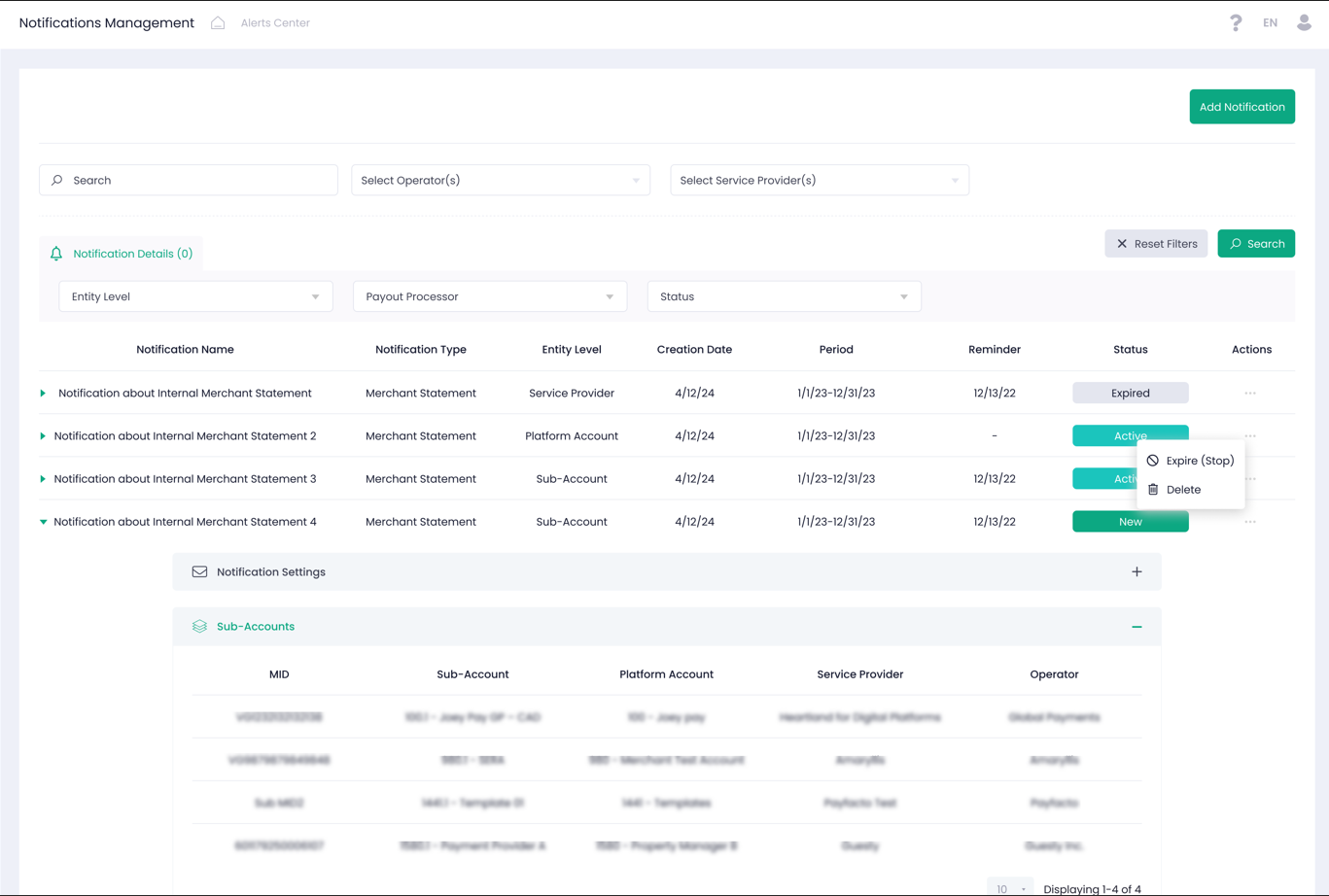
- Click on the “Add Notification” button to initiate the notification setup process.
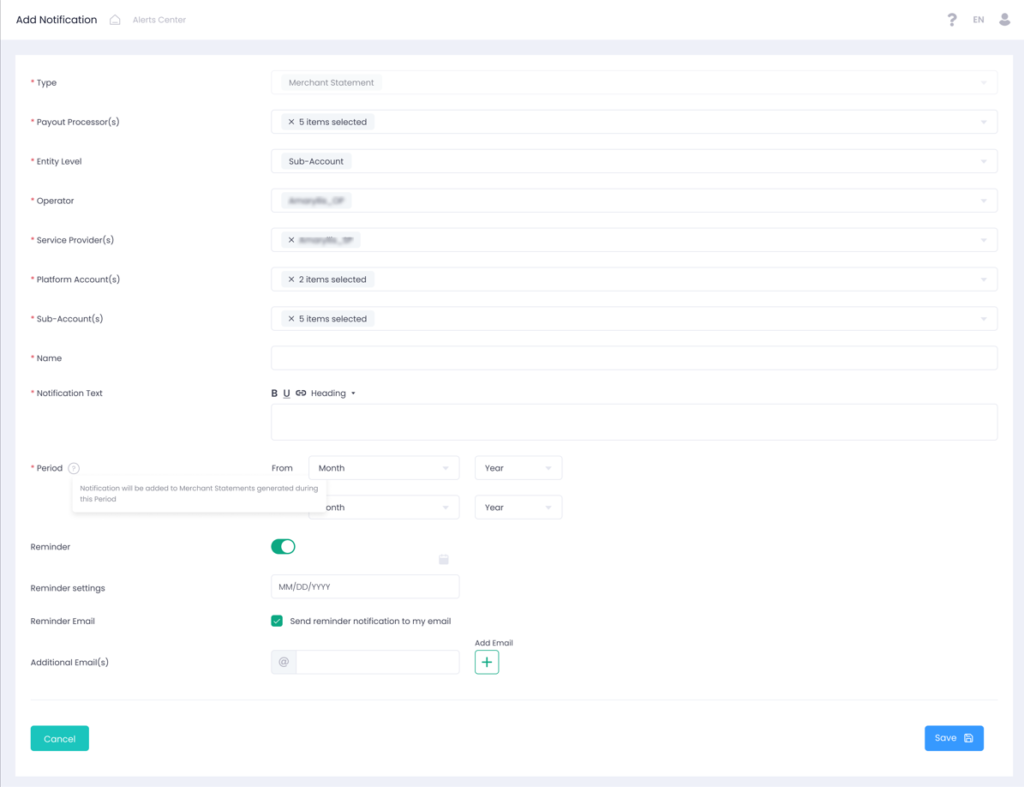
- Input all required notification parameters, including but not limited to:
- Payout processors
- The notification will only be delivered to Sub-Accounts with the selected payout processor.
- Entity level and specific entities
- Define the entity level and specific entities to narrow down the recipients of the notification. For instance: Entity Level is Service Provider and selected Service Provider is Company 1. This configuration means that the notification will be delivered to all Sub-Accounts under Service Provider – Company 1.
- Period
- Set the period during which the notification will be added to Merchant Statements. Notifications will be included in statements generated within this specified period.
- Notification Text
- Enter the message content of the notification that will be appended to the Merchant Statements.
- Reminder Settings
- Configure reminder settings if a system reminder needs to be sent to a specific email address on a specific date.
- Payout processors
- Once all parameters are filled, save the notification to activate it.
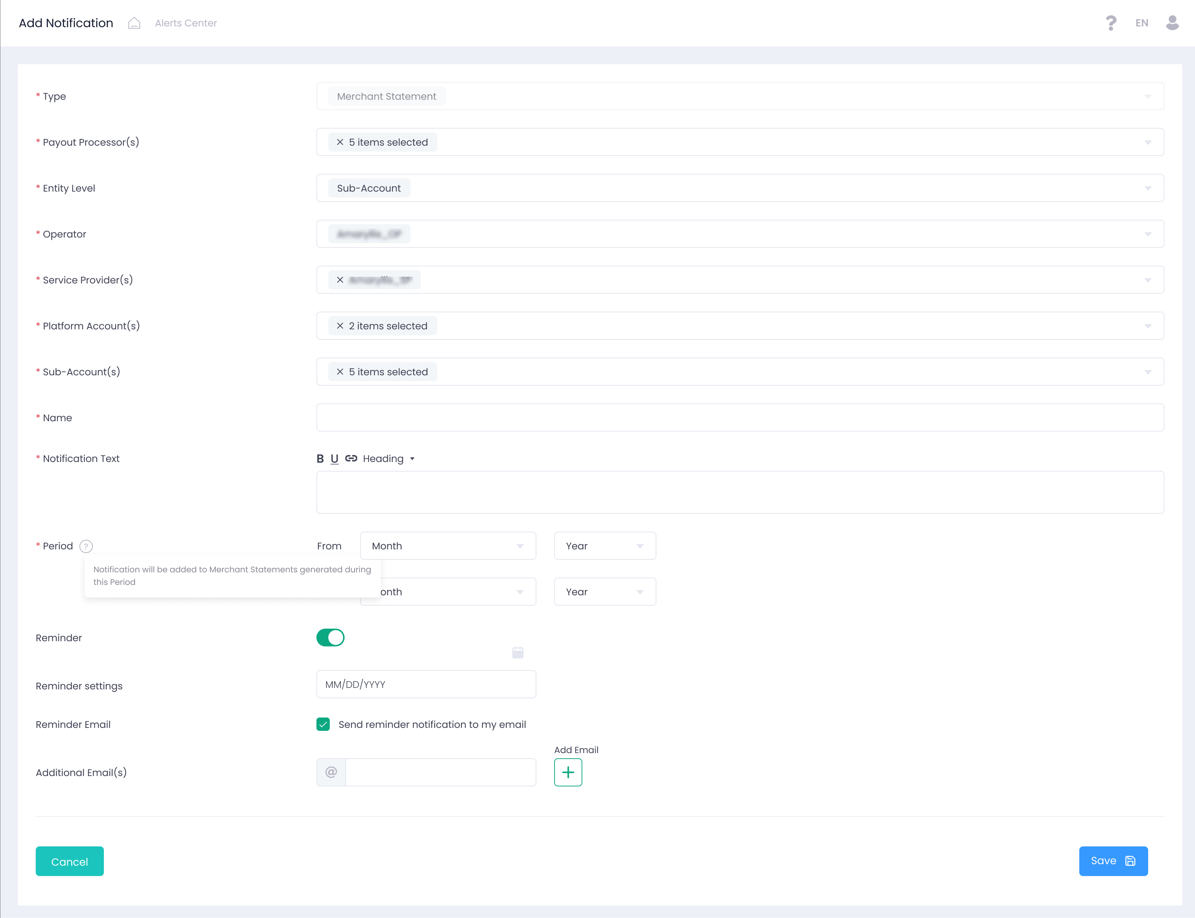
During the period specified in the Notification, the system will automatically append the text of the notification to the merchant’s statement in the new section “Notifications”.
This new feature will help to distribute important updates and information efficiently.