UMS Enhancements
Roles for Owners
It is now possible to configure one or more roles in the Application Template and assign them to each Owner in an Application – Authorized Signatory, Control Person, Director, Legal Representative, and UBO (Ultimate Beneficial Owner). This is a new, separate capability: the existing Control Prong attribute, used to flag an Owner’s control status, remains unchanged.
Template Wizard
The following changes have been made to the Template wizard, in the Owner Details section:
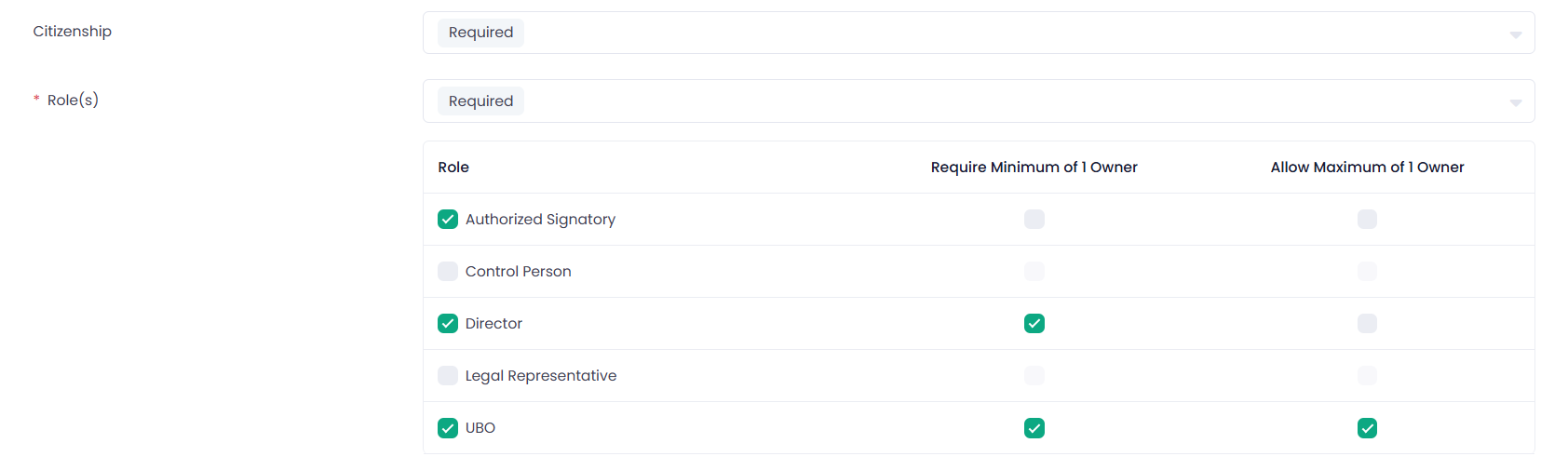
- A new “Role(s)” section has been added after “Citizenship”. In addition to Role(s) visibility (Required or Hidden), this section lets you define which roles are available for selection in the Application wizard.
- For each available role, you can configure “Require Minimum of 1 Owner” and “Allow Maximum of 1 Owner” constraints, controlling how many Owners must or can be assigned to that role.
- A new “Minimum % per Owner” setting has been added next to “Ownership Percentage.” It defines the minimum ownership percentage that each Owner must have.

Migration: for existing Templates, this value has been automatically migrated and set to 1%. - New “Hide for non-UBO” checkboxes have been added for both “Ownership Date” and “Ownership Percentage.” When enabled, these fields are hidden in the Application for any Owner who does not have the UBO role, regardless of their configured visibility.

These changes are also reflected in the Template preview details
Application Wizard
The following changes have been made to the Application wizard, in the Owner Details section:
- A new “Role(s)” multi-select field has been added after “Citizenship”. Each Owner can now be assigned one or more of the roles configured in the Template.

-
The visibility of “Ownership Date” and “Ownership Percentage” now depends on the Owner’s role(s):
If the Owner has the UBO role, these fields are shown or hidden according to the visibility settings configured in the Template.
If the Owner does not have the UBO role and “Hide for non-UBO” = true, these fields are always hidden, regardless of the Template’s visibility settings.
If the Owner does not have the UBO role and “Hide for non-UBO” = false, these fields follow the visibility settings configured in the Template. - The validation message for “Ownership Percentage” now dynamically reflects the “Minimum % per Owner” value configured in the Template.
- If a role has “Allow Maximum of 1 Owner” enabled (for example, UBO) and that role is already assigned to another Owner on the same Application, it is shown as unavailable in the Role(s) selector for other Owners.

These changes are reflected in the Application preview details, the Application PDF/JSON export, and the UMS Iframes.
Onboarding API
The corresponding changes are reflected in the Onboarding API:
- GET Application Template (response)
- GET (response), PUT, POST Application
- GET (response) and PATCH Application Field Statuses
For more details, please refer to our Developer Portal.
Manage Owners During Data Resubmission
Previously, when “Ownership Percentage” and/or “Control Prong” were declined for an Owner, the Resubmission Iframe displayed all Owners so the user could update these fields and redistribute values among them – but there was no way to add a new Owner if one was needed. This release adds full Owner management (add, edit, delete) to the Resubmission Iframe, and extends the declined-field logic to also cover the new “Role(s)” field.
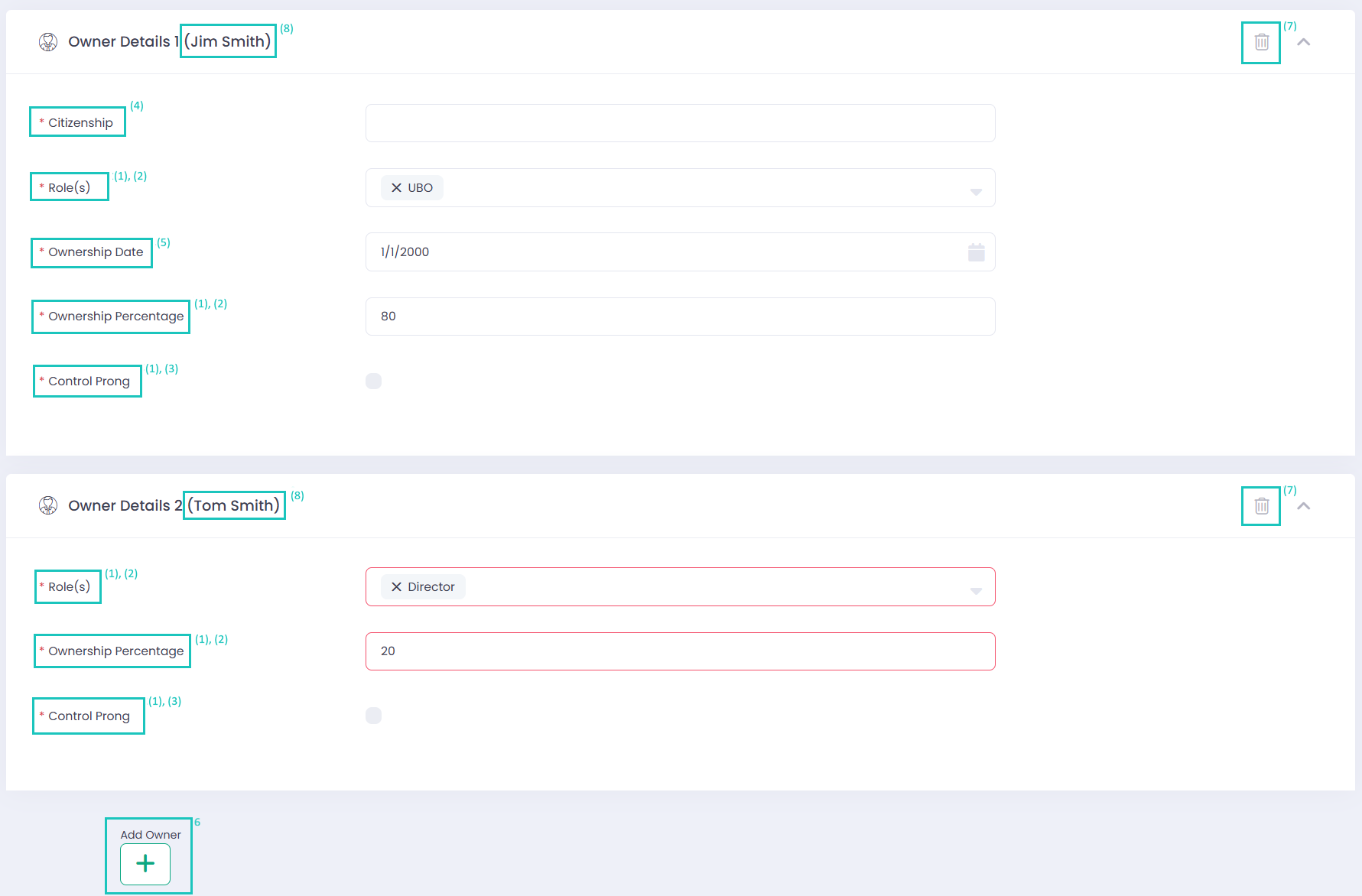
- If any of “Ownership Percentage”, “Control Prong”, or “Role(s)” is declined for at least one Owner, the Resubmission Iframe displays all three attributes for every Owner – – see (1).
- “Ownership Percentage” and “Role(s)” keep their submitted value for the declined Owner, and for all other Owners, and are outlined in the branding’s validation error color (red by default); they return to the normal grey outline after a successful correction – see (2).
- “Control Prong” keeps its previous behavior: it is cleared for all Owners when declined and is not outlined in red – see (3).
- Any other declined attribute is cleared only for the Owner it was declined for and is not outlined in red – see (4).
- If “Role(s)” is displayed in the Resubmission Iframe, “Ownership Date” is now also displayed for all Owners for whom it should be shown according to the Template’s visibility settings; it is not cleared if it was not itself declined – see (5).
- A new “Add Owner” button has been added. It is hidden unless at least one of “Ownership Percentage”, “Control Prong”, or “Role(s)” is declined – see (6).
Adding a new Owner shows the full ‘Owner Details’ and ‘Owner Details – Documents’ sections, with the field set displayed according to their visibility settings in the Template. - A new “Delete” button has been added to each Owner section. It is shown for all Owners whenever at least one of “Ownership Percentage”, “Control Prong”, or “Role(s)” was declined for any Owner, and for an Owner just added during resubmission – – see (7).
Deleting an Owner now requires confirmation via a pop-up. The same confirmation pop-up is also shown when deleting an Owner or a Contact while editing the Application, outside of resubmission. - Each Owner Details and Contact Details section header in the Resubmission Iframe now shows the person’s First Name and Last Name in parentheses – this applies even when none of “Ownership Percentage”, “Control Prong”, or “Role(s)” is among the declined fields – see (8).
Application Page Enhancements
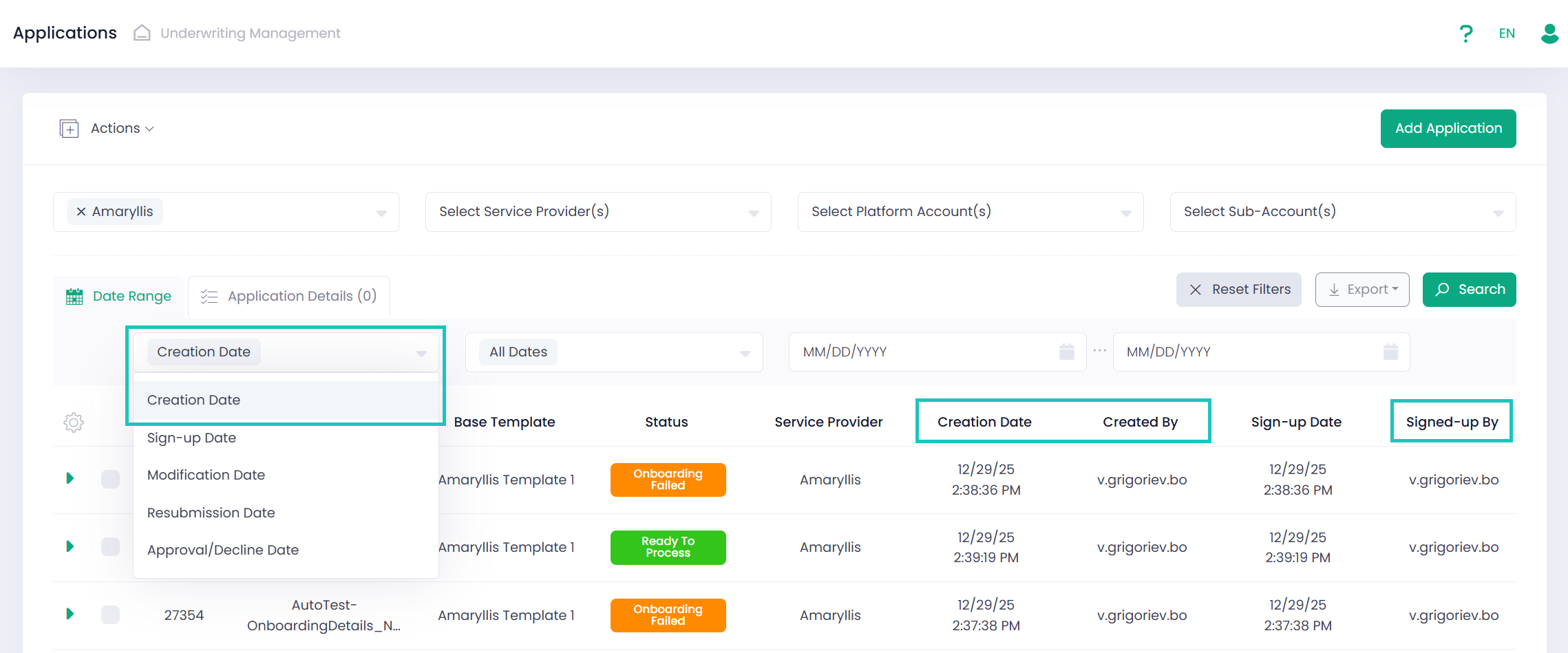
- New “Creation Date,” “Created By,” and “Signed-up By” columns have been added to the grid of the Application page.
- “Sign-up Date” is now set to the current timestamp the first time an Application is assigned any status other than DRAFT. While the Application status is DRAFT, “Sign-up Date” and “Signed-up By” remain empty.
- A new “Creation Date” value has been added to the date-type filter.
- “Signed-up By” and “Created By” have been added to the Excel/CSV export, and “Creation Date” has been added to the Application PDF.
- creationDate, createdBy, signedUpBy, modifiedBy, and approvedDeclineBy have been added to the JSON export and the Onboarding API. For details, please refer to the Developer Portal.
- Migration: for existing Applications, a data migration updates Creation Date, Created By, and Sign-up Date according to the new logic described above.